

Direct answer: Make every account password long, unique, and difficult for someone else to predict. A password manager can generate a different random password for each site; if you need to remember one, use a long passphrase that is not a familiar saying or a small variation of an old password. Store the result securely, turn on the account’s best available second factor, and change the password promptly if it is exposed. A required mix of symbols and a calendar reminder to rotate passwords are not substitutes for those steps.
Build one strong password in five moves
- Check the account’s actual length and character rules before choosing a method.
- Prefer a manager-generated, unique password; make a long, unrelated-word passphrase when you must remember it.
- Reject personal clues, reused passwords, famous phrases, and predictable substitutions.
- Save the password in a protected manager or another secure location you can recover.
- Verify the sign-in, enable the strongest available MFA, and plan what you will do if the credential is exposed.
This guide is about creating and storing a password, not a claim that one string can make an account impossible to compromise. A phishing page can collect a password of any length, a stolen device can expose a signed-in session, and a weak recovery path can undermine a good login. Protecting the account after password creation requires those wider defenses.
Start with length and uniqueness, not a character recipe
Before entering a new password, look at the service’s actual rules: maximum length, spaces, allowed characters, and whether it offers a passkey or multi-factor authentication. These rules vary. A site’s acceptance of a short password does not make that password a good choice. Conversely, a site may reject spaces or long passphrases even when its policy is less helpful than current guidance.
NIST SP 800-63B-4 sets requirements for covered credential verifiers, not a universal claim about every website. It calls for a minimum of 15 characters when a password is the only authentication factor; when the password is used as part of multi-factor authentication, the minimum may be eight. It also calls for allowing long passwords and rejects mandatory mixtures of uppercase, lowercase, digits, and symbols. For a person choosing a password, the practical lesson is to use as much length as the service permits, avoid predictable content, and keep each account’s credential distinct. Do not interpret a minimum as an ideal length or an assurance of safety.
Uniqueness limits the damage from a breach elsewhere. If the same password opens your email, shopping account, and bank, exposure at one service gives an attacker a candidate credential for the others. The Federal Trade Commission’s account guidance describes that reuse risk and recommends a second authentication factor. Start by replacing reused passwords on your email, financial, payment, and primary identity accounts, then work through the rest.
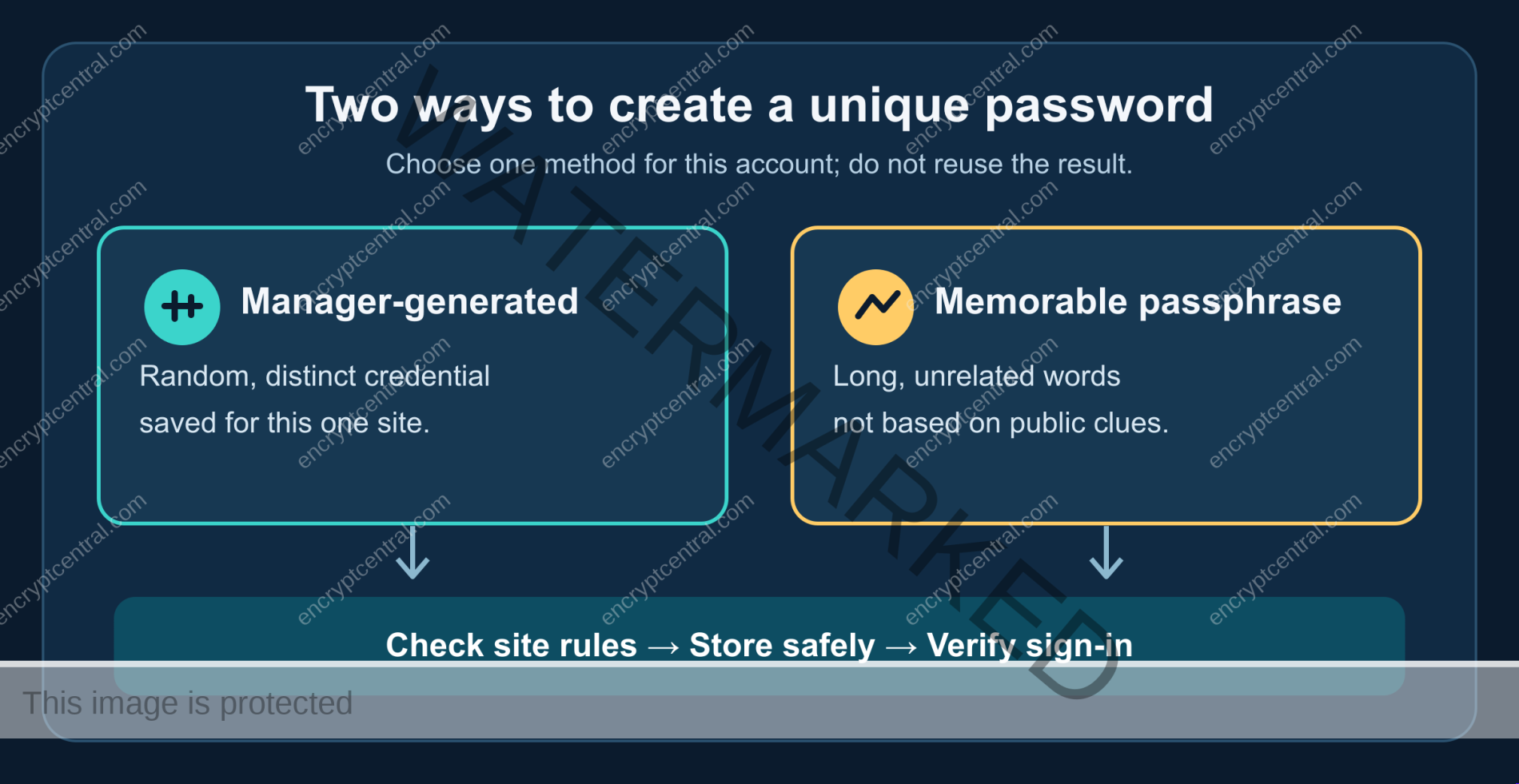
Choose one of two creation methods
Method A: Let a password manager generate it
If you use a password manager, open the account’s password-change page from a known bookmark or by typing the site’s address. Ask the manager to generate a new, random credential that fits the site’s rules. Use a distinct generated value for this one account, save it under the correct site entry, and confirm that the manager can retrieve it before you close the change flow. Do not copy the same generated value into several accounts just because it is complex.
Choose a length comfortably above the site’s minimum when the site accepts it. If the service imposes a narrow maximum or unusual character exclusions, let the manager adjust the generated value for that service rather than building a repeatable personal formula. The manager’s job is to create and remember independent credentials; your job is to protect access to the manager and maintain a recovery route. NIST’s verifier guidance explicitly supports password managers, autofill, and paste, because blocking those features can make strong, distinct passwords harder to use.
A manager does not eliminate risk. Review its account-protection options, how its vault is unlocked, which devices can access it, and what happens if you lose a device or your master credential. Browser-integrated and standalone managers have different features and threat surfaces; this article has not tested or ranked any product. Select a reputable option you can maintain, keep your devices updated, and avoid leaving the vault unlocked on a shared computer.
Method B: Build a passphrase you can remember
For a password you truly need to type from memory, choose several unrelated words and combine them into a long phrase that is not a lyric, quotation, address, familiar expression, or fact about you. The words should not form a common sequence. Make the phrase specific to this one account; do not append a site’s name or a predictable number to a shared base phrase. If the site accepts spaces, they can make a multiword phrase easier to read. If it does not, use a permitted separator or a different construction without relying on a fixed formula across accounts.
NIST’s password-strength discussion notes that passphrases can help people create longer passwords and that forced character-composition rules have less benefit than once assumed. That does not mean any string of dictionary words is automatically strong: a familiar phrase or a pattern an attacker can infer is a poor choice. Use the method to gain length and memorability while preserving unpredictability.
Test the new passphrase privately against the service’s rule checker, but do not paste a real password into an unfamiliar “strength test” website. Such a tool may receive the secret you are trying to protect, and its score may not account for reuse or a known leaked value. A service rejecting an expected, common, or compromised password is useful feedback; choose a genuinely different one instead of changing one character.
What to avoid when you choose the words
- Reuse: Do not carry a password from one service to another. A breach at the weaker service can expose the stronger one.
- Personal facts: Names, birthdays, addresses, pets, team names, and public profile details are easier to guess than they feel.
- Common strings: “password,” keyboard walks, repeated characters, famous quotations, and familiar song lines are poor foundations, even when decorated with a symbol.
- Small edits: Changing an old password’s final digit or replacing one letter with a familiar symbol creates an obvious family of candidates.
- Shared formulas: A base phrase plus each site’s name may feel unique, but exposure of one example reveals the method.
Symbols, numbers, and mixed case are allowed tools, not forbidden ones. The problem is treating them as a checklist that rescues an otherwise short or predictable password. “Password1!” follows a familiar pattern despite meeting many older complexity rules. A longer unique password with no simple personal pattern is a better foundation than a short string engineered to satisfy four character classes.
Store it without making recovery an afterthought
A strong password is only useful if you can retrieve it without recreating a weak pattern. Store account passwords in a protected manager where practical. Give the manager itself a strong, distinct unlock credential and use available account protection for its cloud or sync account. Understand whether your chosen product synchronizes, how it backs up, and which recovery steps it offers. Do not claim a local-only vault is risk-free: a lost or infected device, a missing backup, or a forgotten unlock secret can still cause loss or exposure.
A securely stored written secret is not inherently the same as a sticky note on a shared monitor. NIST describes passwords as secrets that may be memorized or recorded, and its recovery guidance explicitly contemplates offline, securely stored codes. The rule is to prevent other people from finding or using the secret while ensuring you can recover it. A paper backup kept in a controlled location may be sensible for a critical recovery credential; a note visible in a public workplace is not. Your situation, household, and device access determine the safer storage choice.
Avoid password hints that reveal a pattern or personal answer to anyone who can reach the login page. NIST says covered verifiers must not expose a hint to an unauthenticated visitor and must not use knowledge-based security questions when selecting passwords. If a service still offers questions, choose the most protective options it allows and secure the account’s email and recovery methods. Do not rely on hints as your only recovery plan.
Verify the change before you move on
Work through the change as a short test rather than assuming a “saved” message means all access paths are secure:
- Open the real service directly and change the password using its supported flow. Let the manager save or update the entry only for the correct site.
- Sign out of one controlled session, then sign back in with the new credential. Check that the saved entry names the intended domain; do not enter the secret on a lookalike page. If the service supports passkeys or MFA, inspect those settings separately.
- Check whether the service offers a list of active sessions and a way to sign out other devices. Use that option when a password may have been exposed, subject to the service’s behavior.
- Confirm a recovery method that you still control. Store any one-time recovery codes safely and separately from the device you might lose.
- Record the change in your own manager or account inventory, not in an unprotected document. You need to know which accounts have unique credentials, not to keep a plaintext list of them.
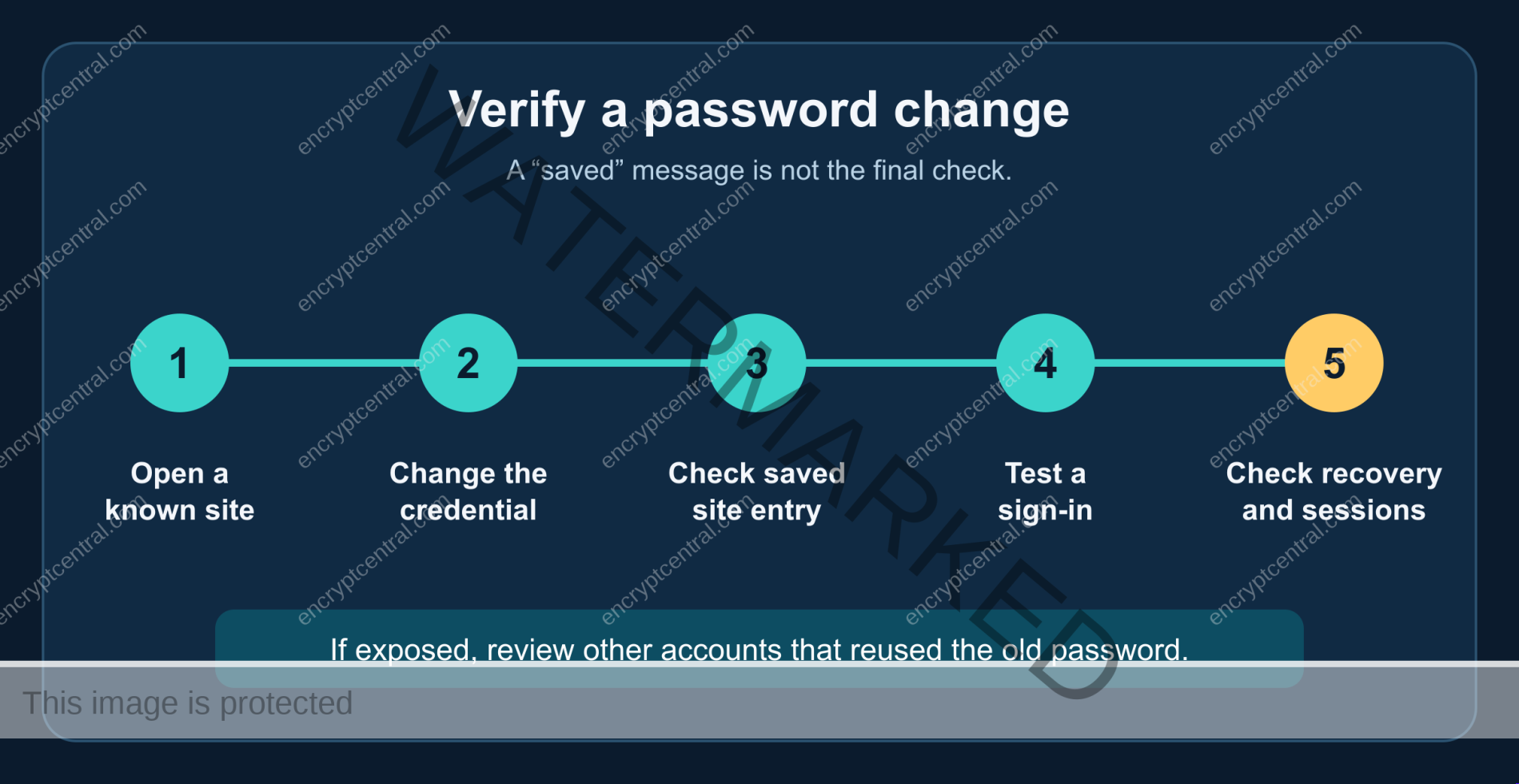
If a password has been disclosed, reused on another exposed account, or entered into a suspected phishing page, change it promptly from a trusted device and a known legitimate site. Change the other accounts that used the same credential, secure the associated email account, and review the service’s sign-in and recovery settings. Routine rotation every three or six months is not a substitute for responding to an actual exposure; NIST tells covered verifiers not to require arbitrary periodic changes but to force a change on evidence of compromise.
Common failure modes
| What goes wrong | Why it matters | Better check |
|---|---|---|
| The password is long but reused. | A breach elsewhere can supply the exact credential. | Review your own account entries for duplicates and replace them one account at a time. |
| The passphrase is a familiar quote or a personal fact. | Length alone cannot repair easy predictability. | Choose unrelated words and avoid public biographical clues. |
| The manager saves the new password under the wrong website. | You may be locked out or autofill a deceptive page. | Verify the domain and perform a controlled sign-out/sign-in test. |
| There is no manager or account recovery route. | Loss of one device can make strong credentials unusable. | Set up supported recovery methods and protect the codes. |
| The password is changed after phishing, but active sessions and email remain exposed. | An attacker may keep another path into the account. | Review sessions, recovery settings, linked email, and available MFA. |
Once you have made a unique password, protect the account with MFA and a recovery plan so one stolen credential is not the whole defense. If a message urges an immediate reset, do not follow its embedded link; the FTC recommends using a known legitimate site or contact channel to check the request.
Bottom line
Use a distinct, long credential for each account. Generate and store it with a manager when possible, or make an unrelated-word passphrase when memorization is necessary. Verify that the new credential works and that you can recover the account. Treat MFA, phishing checks, device security, and recovery as the next layer; none of them turns a password into a guarantee.
Related posts:
 How Can I Implement A Strong Cybersecurity Policy At Work?
 How Do I Recognize A Phishing Email?
 What Is Multi-factor Authentication, And How Does It Enhance Security?
 How Do I Secure Sensitive Data On Mobile Devices?
 How Can I Secure My Network Against Port Scanning Attacks?
 Cloud Shared Responsibility Across AWS, Azure, and Google Cloud


