
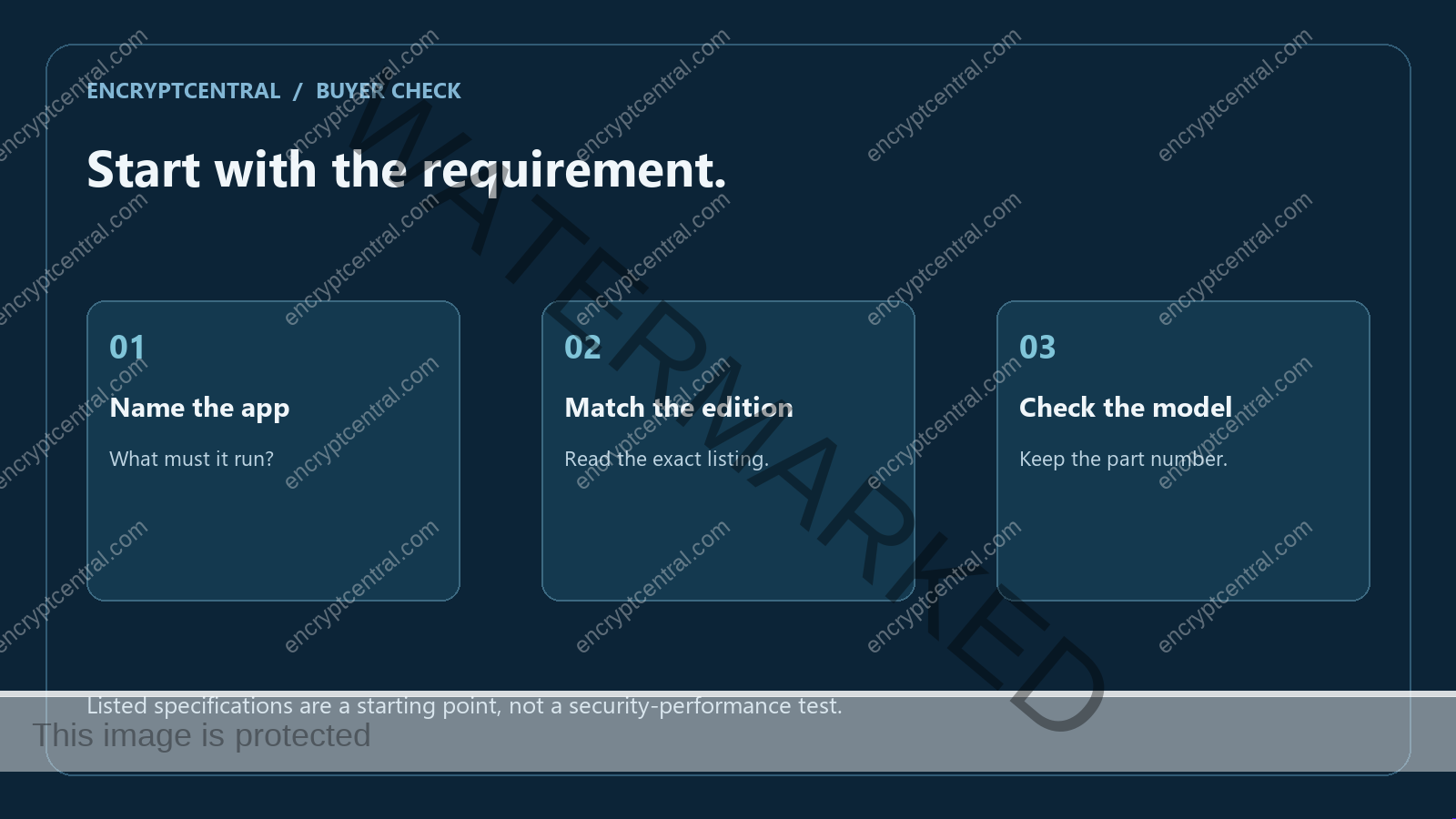
A replacement laptop should meet a requirement you can name: an app you need to run, enough storage for your work, or a physical feature you will use. A long security-feature list does not make that decision for you. Start with your present device and the tasks it cannot reasonably handle before deciding that a purchase is necessary.
How this comparison was prepared
This is a desk-based comparison of two exact US Acer Store configurations, checked on November 3, 2026. We read the maker’s current product pages and specification tables, then used Microsoft’s documentation for the S Mode limitation. We have not bought, handled or benchmarked either laptop. No sample was received, and no battery-life, keyboard, webcam-quality or real-world performance result is reported.
The selection criteria are the stated Windows edition, whether required applications fit that edition, memory and storage, and the privacy-related hardware features Acer explicitly lists. The two models are alternatives for different requirements, not a ranking from least secure to most secure. The evidence does not establish that either is the best choice for every reader, that a listed feature is enabled on a delivered unit, or that a replacement is needed.
Product families can contain other configurations. This comparison applies only to the part numbers shown below. Recheck the complete part number and current listing before relying on a specification. Prices and stock may change; the merchant link is the place to check a current offer, rather than assuming a dated article locks in a checkout price.
Make a short requirements list first
Write down the apps you need, the files you expect to keep locally and whether an employer or school requires a particular Windows edition. Ask that organization about its requirements before ordering. Home and Pro are edition labels to check, not interchangeable wording in a shopping title.
Read the exact part number. A laptop family can contain configurations with different memory, storage and software. Keep the maker’s current specification page with your notes so you can compare the item being sold rather than another configuration’s review.
Check S Mode before planning your apps
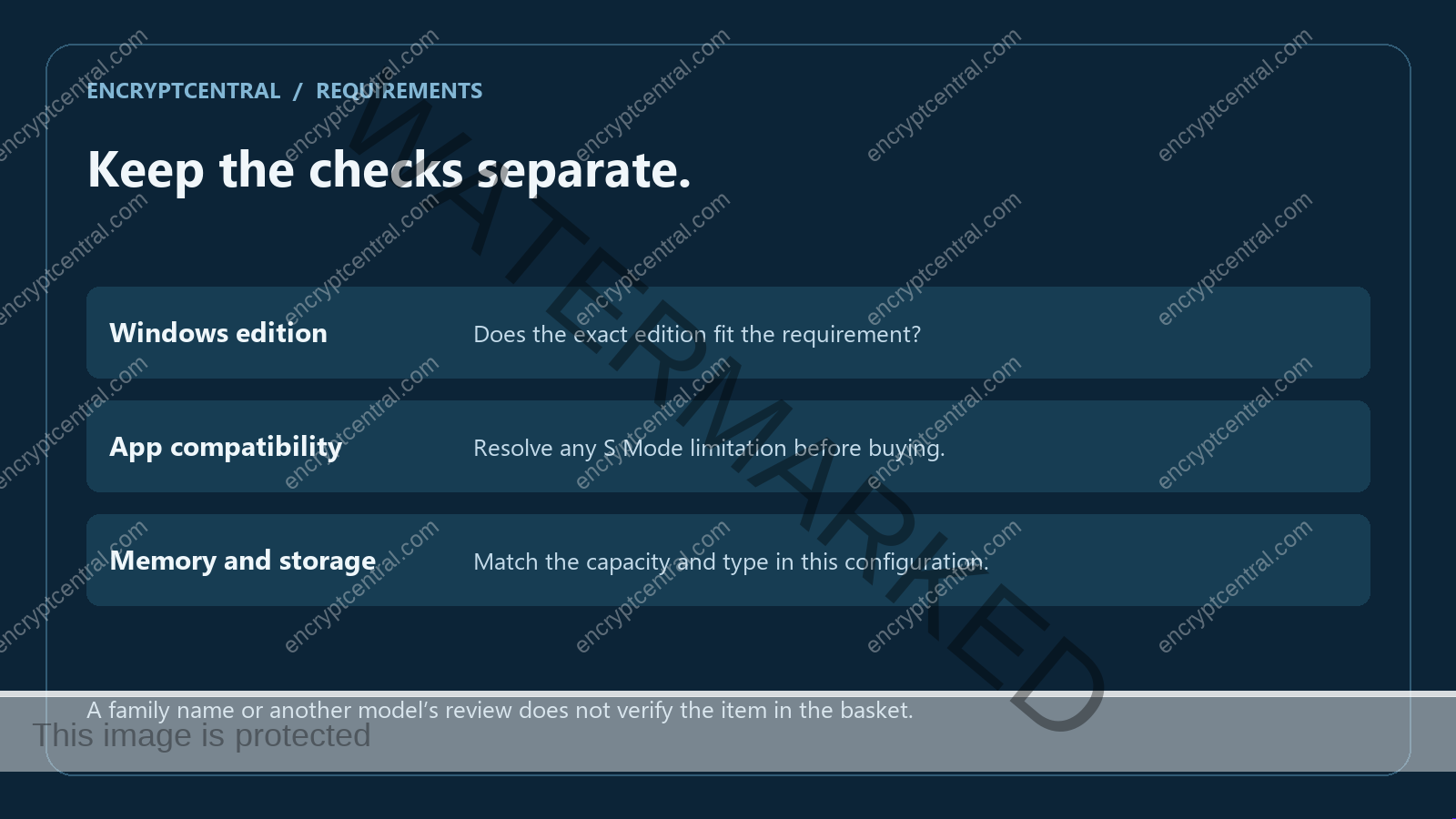
One of the examples below ships with Windows 11 Home in S Mode. Microsoft explains that installing apps from outside the Microsoft Store requires leaving S Mode, and that the change cannot be reversed. Review Microsoft’s S Mode guidance before treating that configuration as suitable. This comparison is not a recommendation to change a security setting.
Separate a listed feature from a tested result
A maker can list a camera shutter or firmware TPM. That establishes a specification to check, not an independent test of the laptop or a promise about every threat. A shutter is not a substitute for reviewing app permissions, and a hardware purchase does not resolve an unrelated account problem. We have not tested the models below and do not rank their security performance.
Two current configurations to compare
Affiliate disclosure: EncryptCentral may earn a commission from purchases through the two Acer links below. We have not tested these laptops.
Acer Aspire Go 15 AG15-32PT-3188
Acer lists the Aspire Go 15 AG15-32PT-3188 (NX.JQHAA.002) with Windows 11 Home in S Mode, 8 GB of memory and 128 GB of UFS storage. Check your required apps and storage before choosing it. Microsoft says leaving S Mode is a one-way change; do not assume you can switch back. We have not tested this laptop.
Acer Swift Air 14 SFA14-I31-58V8
Acer lists the Swift Air 14 SFA14-I31-58V8 (NX.SHYAA.001) with Windows 11 Home, 8 GB of memory and a 512 GB SSD. Its specification table also lists a firmware TPM and camera shutter. Treat those as features to verify in the configuration you receive, not a promise about every threat. We have not tested this laptop.
Neither listing is Windows Pro. Check the edition, required applications, storage and support terms before choosing. If your present laptop meets your needs, this comparison is not a reason to replace it.
Verify the match before making a purchase
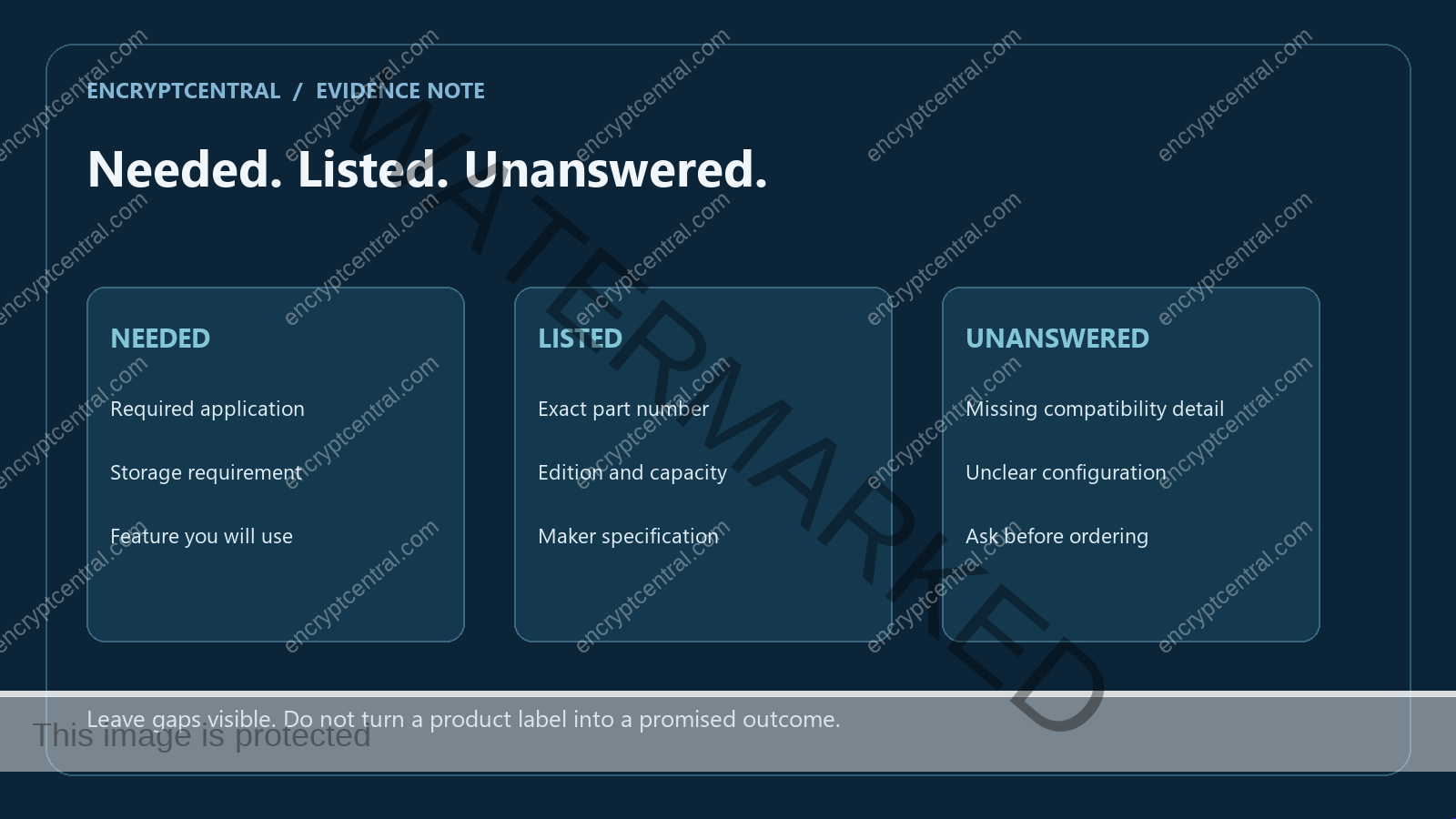
Use a small checklist with one row for each requirement and separate columns for “needed”, “listed” and “still unanswered”. Put the exact application names in the first column. If a school, employer or software supplier sets a Windows-edition requirement, record its wording rather than translating it into a general claim that any Windows laptop will work.
Next, copy the model and part number from the product listing. Confirm that the selected item still shows the edition, memory and storage you compared. A search result, family review or photograph can describe another version. An attractive headline is not a substitute for matching the configuration.
Keep an unresolved requirement visible. For example, a reader who needs an application outside the Microsoft Store should resolve the S Mode decision before choosing the Aspire configuration. A reader comparing local storage should distinguish the listed 128 GB UFS from the Swift’s listed 512 GB SSD, rather than treating both as the same capacity because both are called storage.
Finally, review the merchant’s current price, returns, warranty and support information. Check what is included and which optional additions you actually need. This article does not recommend adding an extended warranty, bundled security subscription or another accessory to make a purchase look complete. If the listing does not answer a requirement, ask the maker or your organization before ordering.
Keep the decision tied to your use
Check the current seller, price, part number, returns and support terms before ordering. If your existing laptop meets the requirements, this comparison is not a reason to replace it. If a requirement remains unanswered, resolve it with the maker or your organization before choosing a configuration.
Sources: Acer’s Aspire configuration, Acer’s Swift configuration and Microsoft’s S Mode guidance linked above. Manufacturer specifications checked November 3, 2026 Central; offers can change.
Related reading
For the wider context, browse EncryptCentral’s security guides. Separate implementation guides cover reviewing internet-exposed RDP access and recognizing the ClickFix fake-CAPTCHA installation pattern. They address specific operating problems; the hardware comparison above does not replace those reviews.