

Start with one local Hermes Agent pilot
Set up Hermes Agent for a task you can describe in one sentence and stop from your own console. A good first job is to summarize a synthetic document in a disposable folder. Pick a supported runtime, connect one model provider, review the tools available to that runtime, and test what the agent can read and change. Leave messaging and unattended jobs off until you can reproduce the expected limits.
Hermes Agent is the agent runtime from Nous Research. This guide covers installing and hardening one instance on macOS, native Windows, Windows Subsystem for Linux 2, or Linux. It draws on the official documentation reviewed November 22, 2026. EncryptCentral did not run the installers or perform the pilot tests described here.
Choose a supported installation path
Use the Hermes Agent platform support matrix to match the installer to your operating system and CPU. Then follow the matching path in the official installation guide. Start from an official Nous Research domain or release source, especially when a download asks you to run a shell script or sign in to a model provider.
- macOS on Apple Silicon. Use the official Desktop DMG or the command-line shell installer. Choose Desktop if you want the bundled graphical interface. Choose the shell install if you plan to work from the terminal. Confirm the CPU before downloading. The vendor’s current macOS installation guide specifies Apple Silicon.
- Native Windows. The native PowerShell route supports Windows 10 and 11 on the architectures listed by Nous Research. The signed MSIX Desktop distribution has its own requirement of Windows 11 22H2 or later. Follow the native Windows guide, then open a new PowerShell window if the shell does not yet see the user PATH change. Review package requirements separately from the capabilities of optional tools.
- Windows with WSL2. Choose this route when you need Linux conventions for the work Hermes will do. Confirm that your chosen distro appears as version 2 in
wsl --list --verbose. Follow the Hermes WSL2 guide and install from the distro shell. Keep the pilot workspace under the Linux home directory. Files mounted under/mnt/cremain reachable when the WSL user and mount allow it. Microsoft explains the Windows and WSL filesystem boundaries. - Linux. Use the official shell installer under a standard user on a supported distribution and architecture. A dedicated account or a disposable VM makes the first test easier to reason about. If your team already manages Hermes with Docker or a package manager, identify who owns updates before installing. The support matrix documents differences in how each distribution receives updates.
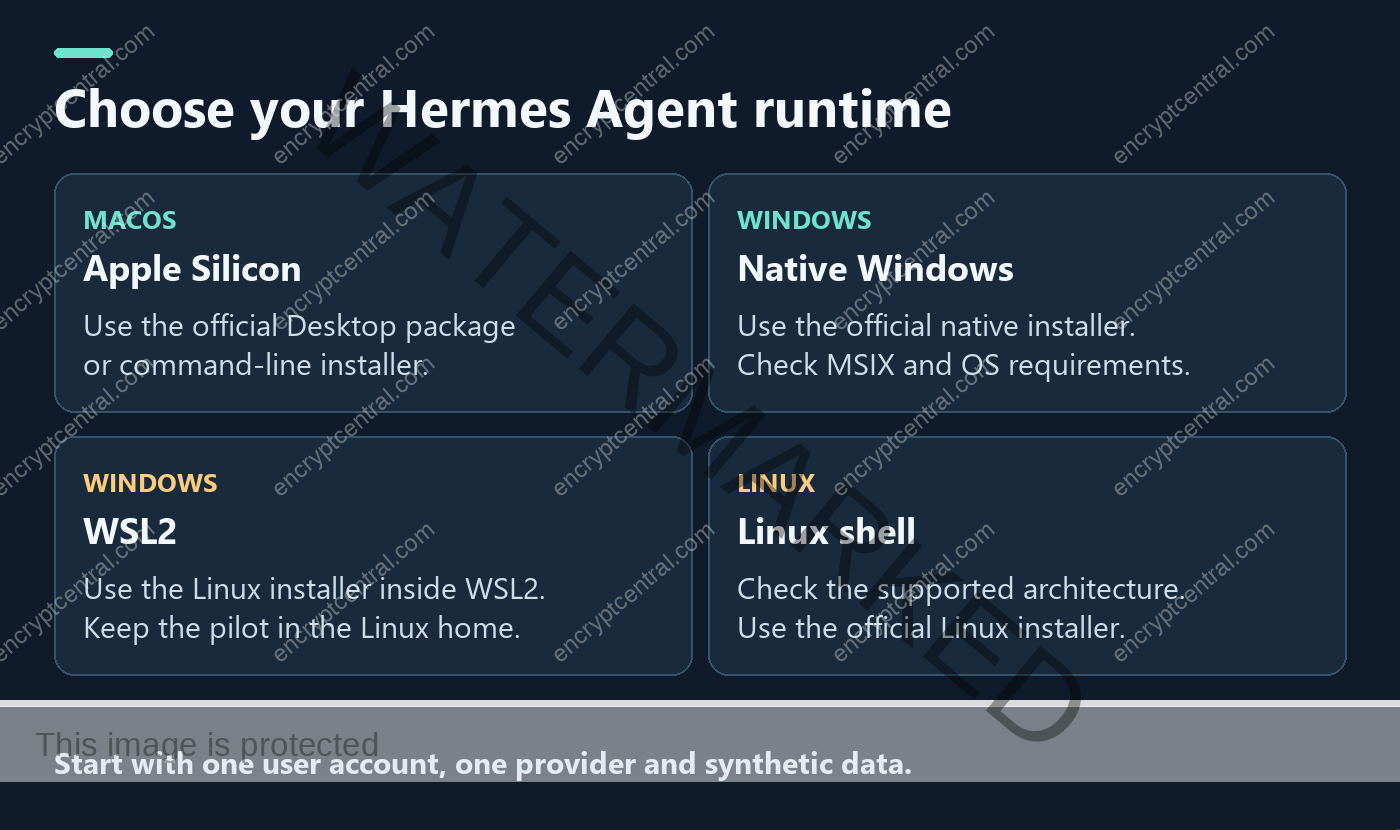
Pick one route for the pilot. Two installs on the same Windows computer can have distinct settings and workspaces. If you keep both native Windows and WSL2, write down which one you are starting before editing settings, checking logs, or restoring a backup.
Confirm which runtime you are configuring
Open the shell for the runtime you just installed. In Desktop you can select the provider from Settings. In the CLI, the Hermes quickstart documents these commands for choosing a model, checking setup, and reviewing enabled tools.
hermes model
hermes doctor
hermes tools
Start a fresh session and ask for a response that needs zero tools, such as a one-sentence explanation of a public concept. That verifies the provider path without mixing in a filesystem or browser problem. Record the installed version, active profile, OS account, model provider, and pilot folder. In a team pilot, record the operator and who can revoke the provider credential.
If the command is missing, check which shell you opened before reinstalling. A command installed inside Ubuntu does not validate a native PowerShell installation. If the command starts but a simple chat fails, check the provider, selected model, and sign-in before enabling a retry loop or changing the tool configuration. Keep troubleshooting output free of tokens and private prompts.
Put the tool boundary outside the prompt
By default, tools using the local terminal backend operate with the privileges of the account running Hermes. The profile documentation explains that profiles keep application state separate and that terminal.cwd sets a starting directory. A separate profile can help keep pilot history and settings organized. Use operating system permissions or an appropriately isolated runtime when you need to restrict which files the process can reach.
The Hermes Agent security policy describes a single-operator trust model and treats the operating system as the primary security boundary. On a workstation with browser sessions, SSH keys, or synced work folders, consider a dedicated standard account or disposable VM for the pilot. Give that environment copies of a few synthetic fixtures. Leave personal home directories, cloud sync folders, production repositories, and privileged management interfaces outside its reach.
Use hermes tools to review the toolsets for the platform you actually plan to use. Start with the few capabilities needed for the test. A plain chat test needs zero tools. A document pilot needs a way to read one fixture. Keep shell execution, unattended scheduling, computer-use access, and external connectors disabled when the task can be completed without them. Review the actual tools within a selected toolset, including writes and outbound destinations. See the Hermes tools and toolsets documentation.
If you need shell execution, the Hermes security guide documents isolated backends, including Docker where supported. Review what the backend can reach before invoking the shell tool. Expose only the pilot directory, keep credential forwarding empty for the synthetic test, and avoid mounting the host home directory or exposing the Docker management socket to the agent. Review tool calls that may run outside the selected terminal backend as separate access paths. The configuration reference explains the backend settings.
Keep approval prompts enabled where the backend supports them. The vendor’s work-machine guide describes manual review for commands that trigger the approval rules. The security guide documents different behavior for container backends, where the sandbox serves as the boundary for those commands. Test filesystem and destination restrictions directly with harmless fixtures. A prompt setting alone cannot show what the runtime can access.
Keep credentials and remote entry points narrow
Use a dedicated provider credential where the service supports one. Tell the model only what it needs for the test. Store credentials through the supported configuration flow and keep them out of prompts, project files, copied logs, screenshots, and skill definitions. For an integration added later, write down its identity, allowed resources, read or write permissions, destination, and revocation route. Verify those restrictions in the downstream service as well as in Hermes.
Run the first pilot from a local shell or Desktop session. Keep the dashboard on its documented loopback binding if you need it during setup, and leave API exposure off. The web dashboard documentation explains why it should be treated as an administrative surface that can manage secrets and settings.
If you add a messaging gateway, start with one dedicated test bot and a small list of explicitly authorized users. Test admission with one permitted and one unlisted test identity. Check whether the permitted identity can reach only the tools and data you intended to expose through that surface. Keep write actions and jobs on hold until you can show who approves them and how that approval binds to the actual action.
Use a fresh Hermes configuration if you are moving from another agent. Recreate only the integrations you need and verify their permissions individually. If your team continues to support both products, use the OpenClaw setup and hardening guide for that product’s separate runtime and controls.
Prove access, shutdown, and recovery
Create two synthetic files with distinct, harmless phrases. Put the first inside the approved pilot workspace. Put the second outside the boundary you mean to enforce, in a directory you control. Keep real credentials and personal files out of both tests. Run these checks in the same profile, runtime, and tool configuration that you plan to keep.
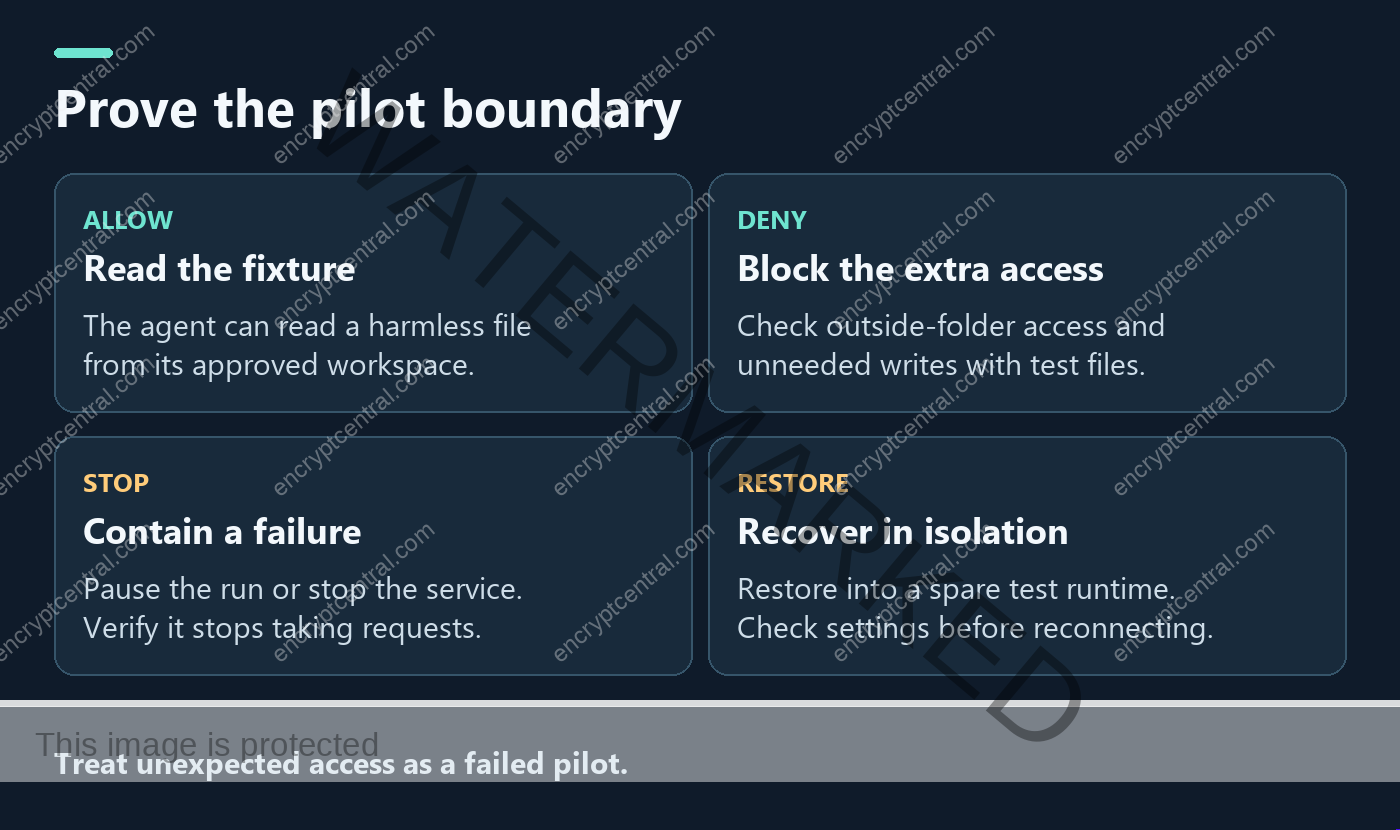
- Allow the intended read. Ask for a short summary of the file in the approved workspace. Check the tool record for the expected path. Save the result without including unnecessary session data.
- Check the deny cases. Ask for the second test file and, for a read-only pilot, ask for a harmless file to be written. Verify that the runtime or downstream control blocks the extra access. If an out-of-scope operation succeeds, narrow the OS permissions, mounts, or toolset and rerun both the intended read and the deny case.
- Practice stopping the workload. Have the designated operator stop the local run. If a gateway is already part of the test, check the status and use the documented stop operation for that runtime. Verify at the test channel that it stops responding, and inspect the destination if any action was in progress. A stopped agent may have already handed work to another service.
- Restore away from the live instance. Use the vendor’s backup and transfer instructions to produce a pilot archive and restore it into a disposable target. A Hermes backup can contain model credentials, bot tokens, conversations, and scheduled jobs. Store it as confidential material. Test recovery with messaging and unattended jobs off, then verify the intended settings and synthetic file access before connecting anything live.
Retain a short test record with the runtime and profile, enabled tools, allow and deny outcomes, stop test, restore result, and operator. Use the AI Agent Security Checklist when adding tools that can write to another service or when evaluating who can authorize those changes.
Fix common setup and hardening failures
- A tool works in chat but fails from a gateway. Confirm the gateway’s own account, profile, environment, and enabled toolsets. Investigate that surface directly before widening file permissions or exposing more credentials.
- A second profile can still access the first profile’s files. Recheck the privileges of the OS account and any host mounts. Use a genuinely separate execution environment for workloads with different trust requirements.
- A restored agent starts answering unexpectedly. Stop the restored workload and verify which instance is connected. Check active gateway sessions, scheduled tasks, and the downstream bot or connector before restarting either instance.
- An update changes which tools are available. Check the official release notes and security advisories. Use the update path for your install channel and repeat the pilot checks after changes to Hermes, a toolset, a connector, or the execution backend.
Decide when to expand the pilot
Expand after the intended read succeeds, the unwanted access fails at an enforceable boundary, and an operator can stop and restore the workload. Add one tool, destination, or user at a time, then repeat the relevant checks. If you cannot name which account will act, what it can reach, and who can stop it, keep the pilot limited while you resolve those questions.
For a team rollout, use the shadow AI policy template to record the approved use case, owner, provider, data boundaries, and review date.
Related posts:
 Taming the Autonomous Fleet: Securing and Scaling OpenClaw Across macOS, Windows 11, and Linux
 AI Agent Security: Permissions, Injection, and Data Exfiltration
 DMARC, DKIM, and SPF Setup to Stop Domain Impersonation
 AI Agent Risks Exposed in Salesforce Agentforce
 Before Replacing a Laptop: Check Windows and Privacy Features
 Software Supply Chain Security and SBOM Buyer Guide