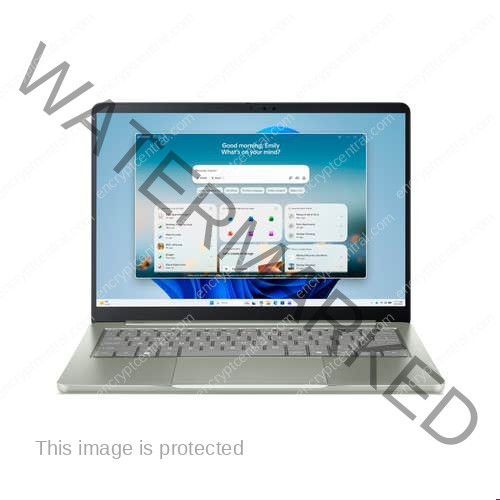

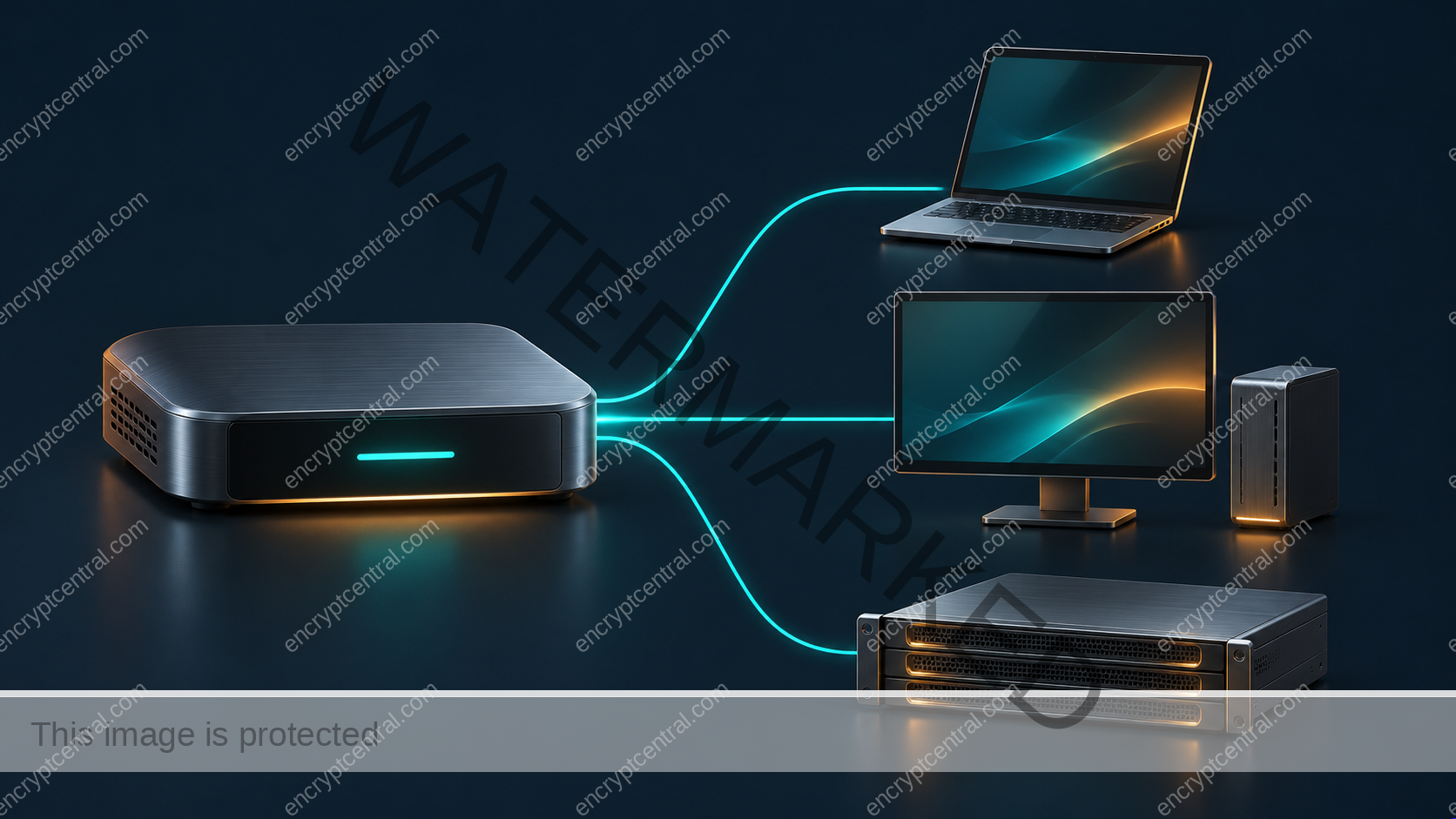
Start an OpenClaw rollout with one Gateway for one trusted operator or team. Give it a small workspace, connect one model provider, and prove one low-risk workflow before adding a chat channel, another agent, or a remote device. Every expansion should have an owner, a reason, and a test that shows which files, tools, and accounts the agent can reach.
The Gateway manages connections to clients, channels, agents, and devices. It can run on a developer machine or on a separate host that the team connects to remotely. Choose where it runs before deciding where to store credentials, state, and workspaces. This guide is based on official documentation reviewed November 21, 2026. The examples describe a proposed rollout, with no hands-on deployment or performance testing.
Choose a setup path for macOS, Windows 11, or Linux
Use the official OpenClaw installation guide for downloads and current runtime requirements. Check the Node.js compatibility notes if you manage Node yourself. Desktop installers can manage their own runtime, so the prerequisites for a manual CLI installation may differ from the prerequisites for a companion app.
- macOS: Use the macOS app where your macOS version is supported, or follow the CLI route for a terminal-first setup. During setup, decide whether this Mac hosts the Gateway or connects to one elsewhere. A local pilot can run with a dedicated, limited workspace and a single provider.
- Windows 11: The Windows Hub guide recommends the native companion. On a compatible PC it can provision a native Gateway. It can also provision a Gateway in an app-owned WSL distro or connect to an existing Gateway. For a terminal-first deployment, the docs cover native PowerShell and WSL2. Choose WSL2 when the workflow depends on Linux-oriented tools or needs to match a Linux server. For Linux tools running under WSL, Microsoft recommends keeping project files in the WSL filesystem for better performance.
- Linux: For a headless host, follow the Linux installation path and CLI onboarding guide. Run
openclaw onboard, select a provider and a workspace, and review the option to keep the Gateway running in the background. Check which operating-system account owns the service and which directories it can read.
From the terminal environment that owns the Gateway, check openclaw --version and openclaw gateway status. The shell and background service can point to different installations, so confirm the running service when troubleshooting version mismatches. Send one harmless test prompt and confirm that the expected provider responds. Resolve startup, authentication, or workspace errors before enabling additional tools.
Harden the Gateway, channels, and tools separately
OpenClaw’s Gateway trust model assumes a single operator or a team whose members trust one another. Agents assigned to the same Gateway can have different workspaces and tool policies. For users or workloads on opposite sides of a trust boundary, plan separate Gateways and credentials, with separate OS accounts or hosts where practical. Determine who can change the Gateway configuration and who holds its operator credentials.
- Keep the control plane private. A regular host install binds the Gateway to loopback by default. Check the actual binding, particularly for Docker or another container installation, because the documented container defaults differ. When remote administration is necessary, use a documented private access path and verify its authentication. The security guide and remote access guide describe the supported patterns. An encrypted network connection still needs an access policy for the people and devices that use it.
- Reduce who can send instructions. Leave unused channels disabled. On a channel you enable, check its direct-message pairing or allowlist settings and review group access. Treat messages, webpages, and tool results as data. Require a separate human approval for sensitive actions such as deploying content, changing access, or modifying production systems.
- Limit what an agent can do. Enable only the tools its job requires. Start document-reading workflows with read-only access to a dedicated workspace and no shell or browser tools if those tools are unnecessary. Review OpenClaw sandboxing for the supported backend and effective workspace access. Sandboxing applies to eligible tool execution while the Gateway itself runs outside that tool sandbox. Check the effective mode, workspace permissions, extra mounts, and any host or node execution path before relying on it.
- Keep secrets out of agent-readable files. Use scoped credentials for each integration and the protections described in the OpenClaw secrets guide. Use SecretRefs for supported credential fields. Keep secret values, auth profiles, and production tokens outside the agent workspace and shared Git history. Check whether tools or subprocesses receive credentials through their environment. A restricted directory or file only helps when the runtime identity that needs isolation cannot read it.
Run openclaw security audit and, where sandboxing is enabled, examine openclaw sandbox explain. Review the output using the security audit guide and record which findings were remediated. Validate the policy with harmless checks on your own Gateway: confirm an approved account can connect, an unapproved account cannot, and a read-only workflow cannot modify its test files.
Share reviewed configuration across machines
Put reviewed configuration templates, documentation, and workspace instructions in version control. Keep live credentials, transcripts, agent state, and databases on the host or in the designated backup system. Git’s ignore rules apply to untracked files. If a secret reached the repository, rotate or revoke it and handle the tracked copy and history under your incident process.
Promote changes through a reviewed commit and a test Gateway. Check the resolved paths, effective tool permissions, channel access, and model connection before promoting the same revision to another OS. For Windows, confirm whether a path belongs to the native host or to WSL, then check who owns it. Use the same review and rollback process for prompt templates and integrations that can cause external actions. A successful configuration sync is only one piece of deployment evidence.
Use spend telemetry alongside enforceable limits
The API usage and costs guide distinguishes OpenClaw’s local session estimates from provider usage and billing. Use openclaw status --usage to inspect provider usage windows when available and compare the dashboard with the provider’s own billing and quota views. Local estimates can be incomplete if pricing or usage metadata is missing.
Treat a hard spending ceiling as an explicit control. Check which quotas or limits your provider actually enforces, who can change them, and how the application behaves when a request is refused. Budget email and dashboard alerts can signal when someone needs to act. If the job needs an immediate stop at a threshold, use a confirmed provider control or a separately maintained application limit. Cap retries and concurrency in the job itself, and give its owner a clear way to pause submissions. Test those behaviors with a low-risk pilot before running unattended work.
Verify MCP connections without restarting the whole Gateway
Start with one known MCP server and grant only the tools and credential scopes needed for the task. Use the transport the service documents. For remote endpoints, keep TLS verification enabled and use separate connection and request timeouts where appropriate. The MCP transport reference explains Streamable HTTP, SSE, stdio, authentication, and the timeout settings.
Use openclaw mcp probe <name> to confirm that the intended server responds and exposes the expected tools. An HTTP response by itself cannot confirm a successful MCP session. The built-in client backs off after startup failures. If a tool reports a timeout or an ambiguous result, determine whether the action actually happened before retrying. Pause the affected workflow and check the server, credentials, and logs first. Restart a Gateway only when evidence points to the Gateway and its owner can account for other running work.
Back up state and verify recovery before scaling
Keep the running OpenClaw state on suitable local storage and use the official backup procedures for the installed version and storage backend. For a supported full archive, review openclaw backup create --verify and select a protected destination. Use the documented snapshot procedure for a database-specific backup. Avoid using raw copies of live SQLite databases and their sidecar files as backups. Archives can contain credentials, conversations, and workspace files. Encrypt them, limit access, and set a retention policy.
Test restoring into a separate environment with production channels and write privileges disabled. Confirm that the expected config, agent state, and workspaces are present, and check which credentials need to be reissued or reconnected. If the state database grows unexpectedly, measure what is growing and follow the documented SQLite maintenance workflow for the installed version. Schedule maintenance with the service owner when the documented procedure requires downtime. Before a staged upgrade, read the official update guidance, confirm a recoverable backup, and rerun connection and permission checks after the change.
Run a small acceptance test before expanding
Use a workspace with a few synthetic documents and ask the agent to summarize one of them. For this pilot, grant read access only. Capture the host, Gateway version, provider, and intended workspace in the test record. Then run three checks against the policy you intend to rely on.
- Test the permission boundary. Confirm that the agent can read the designated document. Use a second harmless test file outside the allowed workspace to check that policy blocks read access. Verify that a request to write a test file is blocked. If the agent can read outside the workspace or write a file, pause until you understand which tool, mount, or runtime identity allowed it.
- Test an integration failure. Use a disposable MCP test endpoint and remove its test connection. Confirm that the agent reports the dependency as unavailable and that the workflow stops or routes the task to its owner. For any write-capable tool you add later, record where to look up the outcome of an ambiguous request before retrying it.
- Test recovery. Record where the verified backup lives and who can restore it. After a test restore, use the same synthetic documents to confirm the intended model and workspace come back. Recheck the tool and channel policy before reconnecting anything with production access.
Scale after the pilot can answer four questions: who can connect, what the agent can touch, what stops a job when something goes wrong, and how the team restores the service. Record the answers for each Gateway. Add one capability at a time so a failure has a clear owner and a known rollback.
Before expanding the pilot, use the AI agent security checklist to review tool permissions, approval boundaries, and how to stop the agent if something goes wrong.
Related posts:
 Cloud Shared Responsibility Across AWS, Azure, and Google Cloud
 Before Replacing a Laptop: Check Windows and Privacy Features
 What Are The Best Practices For Securing A Database?
 What Are The Challenges Of Securing Legacy Systems?
 Recorded Future: Securing Our World With Intelligence Review
 Penetration Retesting: Verify Remediation